
Self-hosted Excalidraw collaboration
ExcaliDash lets people edit Excalidraw drawings together while storing them on your own server. The frontend and backend in the Docker Compose deployment provide the workspace and real-time connection.
Share a drawing with your team
- Create accounts for the people who will use your workspace, or configure OpenID Connect.
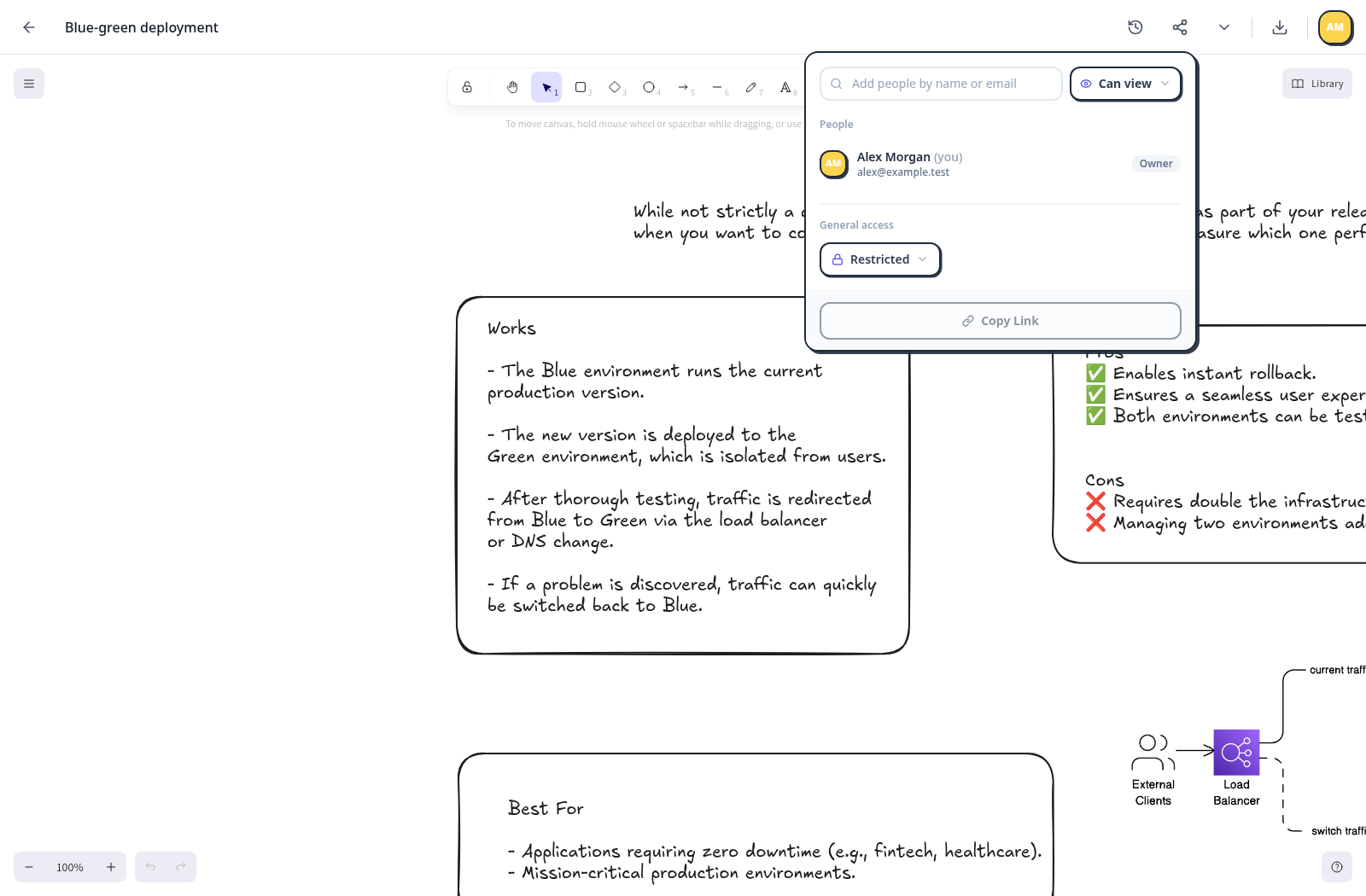
- Create or open a drawing and select Share.
- Add the account you want to invite and choose viewing or editing access.
- Have the invited person open the drawing from their shared workspace.
- Open the same drawing at the same time to work together. Editing access allows collaborators to change the drawing; viewing access allows them to read it.
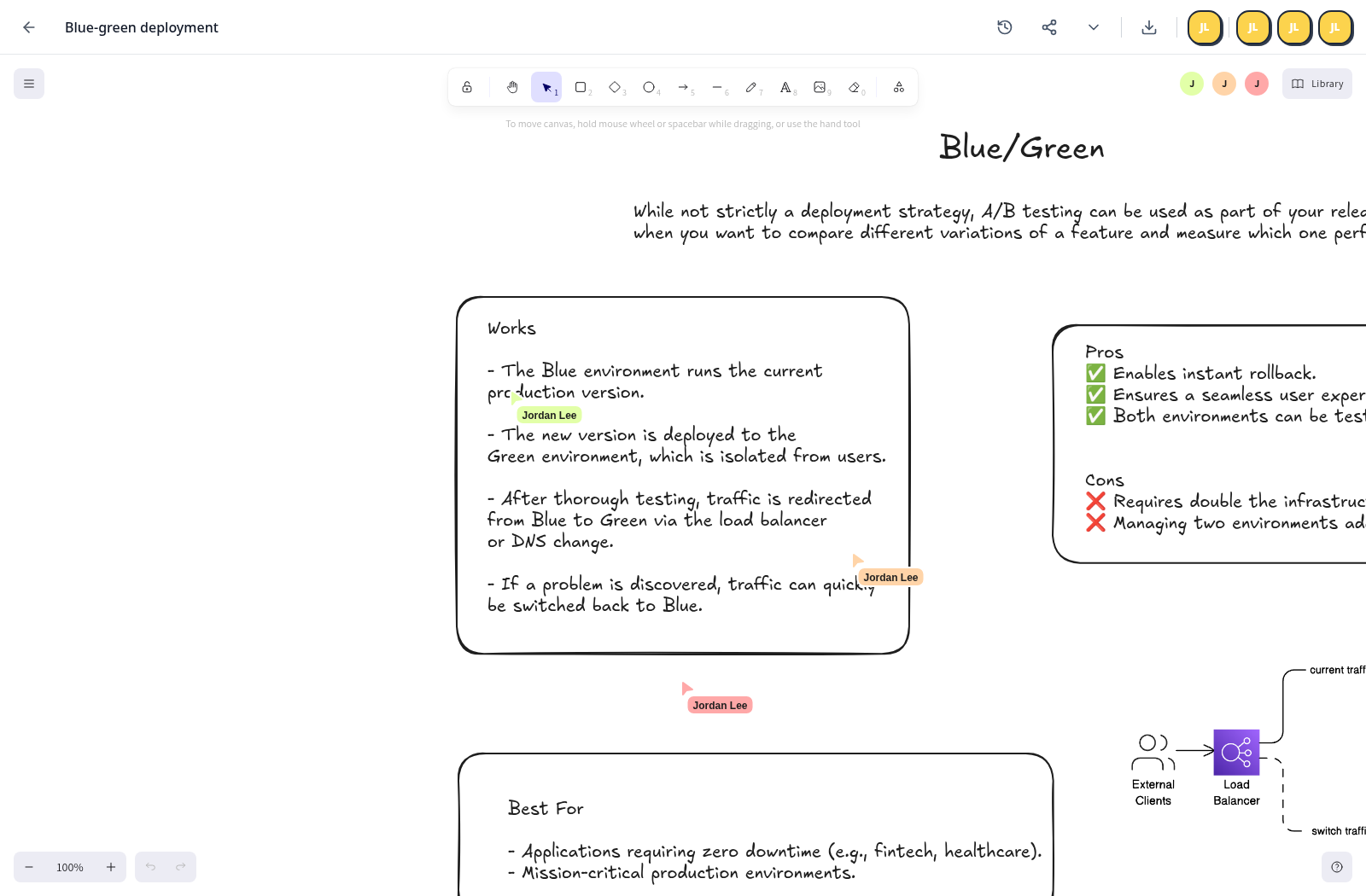
Live cursors and presence help you see who is working on the drawing.
Share collections
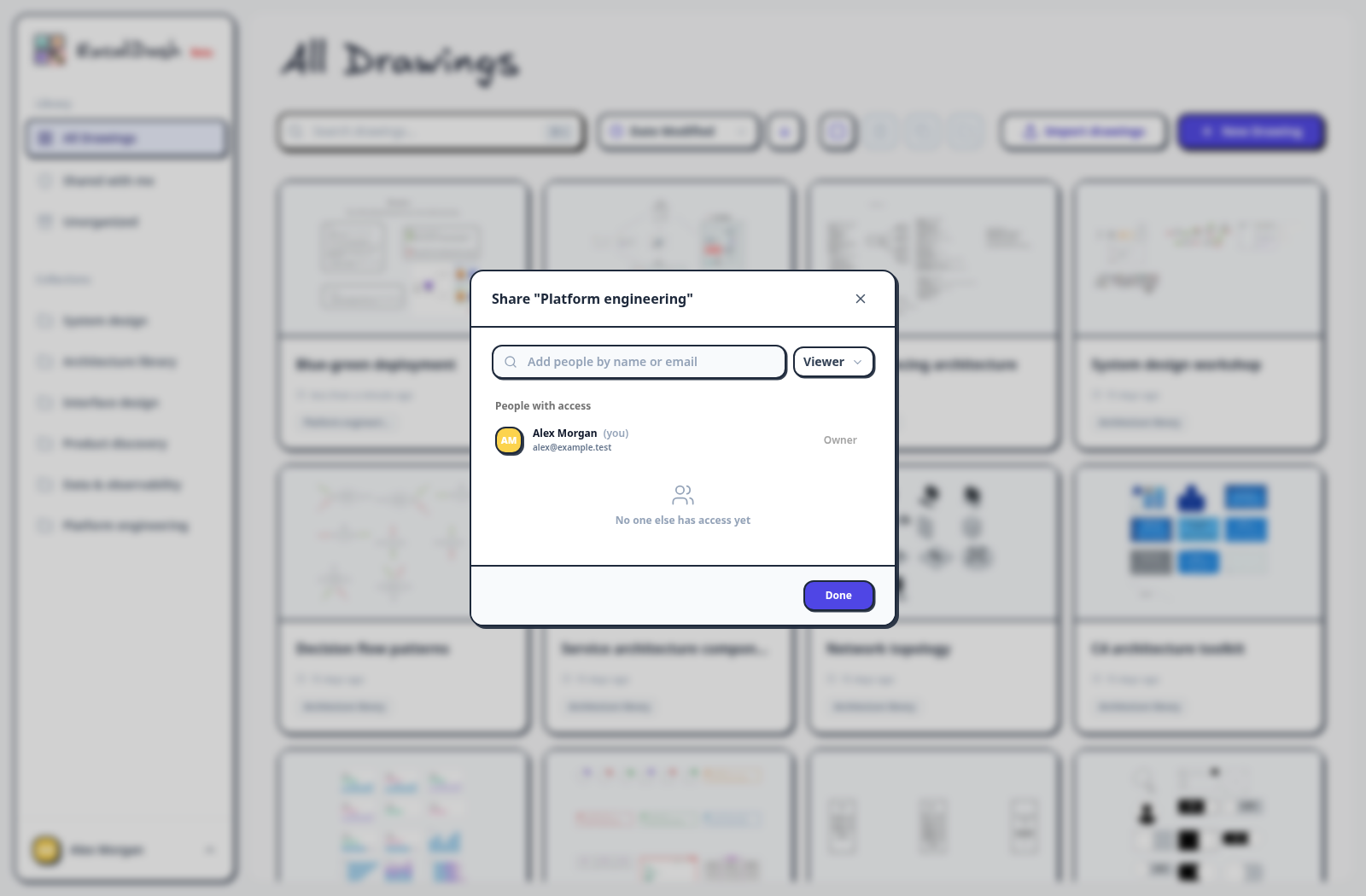
Collections group related drawings. Right-click a collection in the sidebar and select Share Collection. Share the collection with other accounts and select their access level to work on a set of drawings together. Keep access scoped to the people who need it.
Share a link
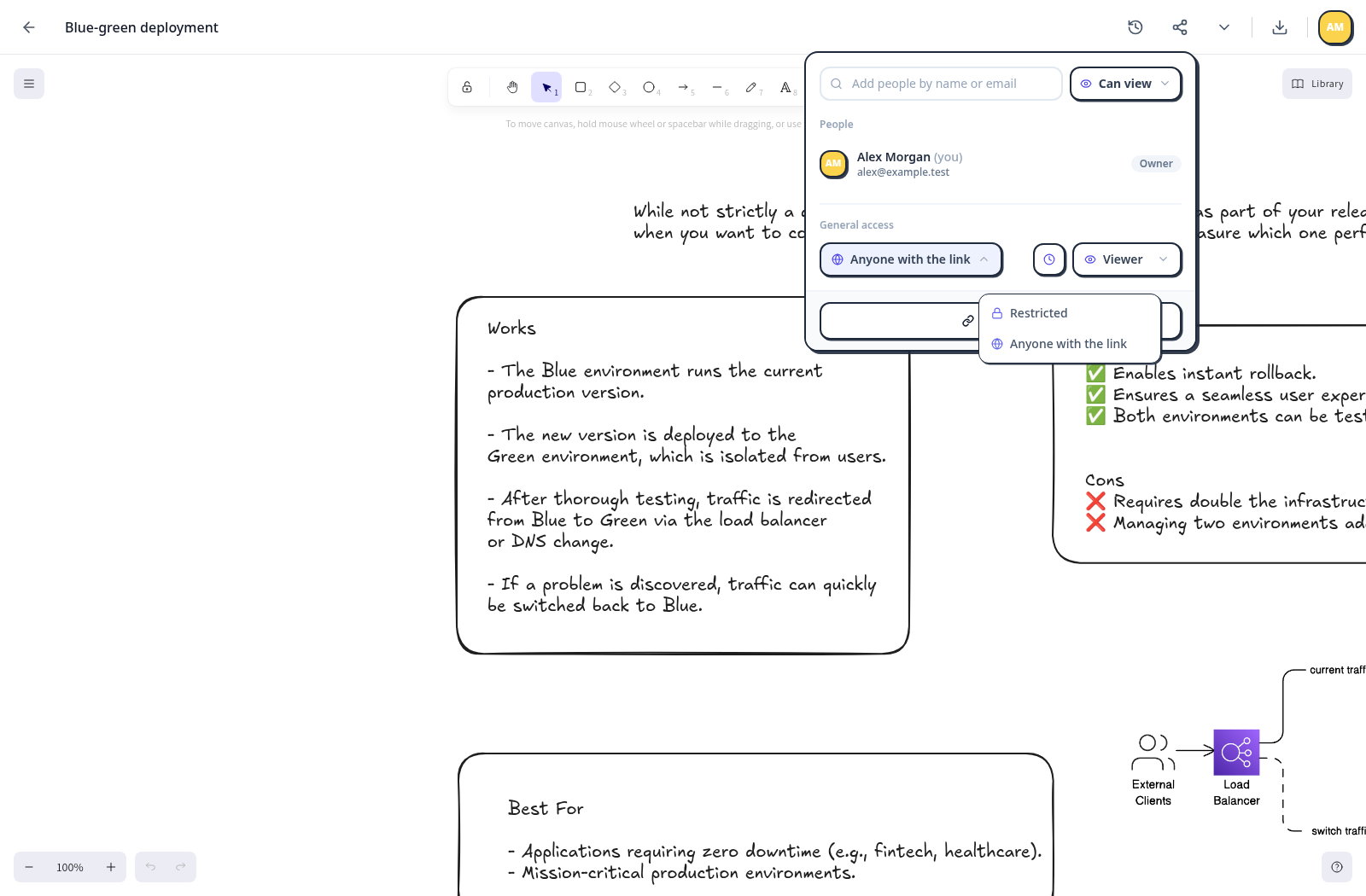
In the drawing's Share controls, open Link access to choose Restricted or Anyone with the link. Choose viewing or editing permission and an expiration when available, then copy the link. Anyone who receives an enabled link can use the access it grants, subject to your instance's sharing policy. Revoke the link when that access is no longer needed.
Configure your reverse proxy
For HTTPS deployments, your proxy must forward WebSocket upgrades for /socket.io/. Set FRONTEND_URL to the origin people use to open your workspace, and configure TRUST_PROXY for your trusted proxy chain. Follow the HTTPS deployment instructions.
Troubleshoot live editing
If the drawing loads but edits do not appear in the second session:
- Confirm both people opened the same drawing and have the intended permissions.
- Confirm the reverse proxy forwards WebSocket upgrades.
- Check that
FRONTEND_URLmatches the deployed URL, including HTTPS. - Read the backend logs for connection or authorization errors:
docker compose -f docker-compose.prod.yml logs --tail=100 backendCollaboration and backups serve different purposes. Use persistent storage and separate backups to protect the workspace over time.