
How to self-host Excalidraw with Docker Compose
ExcaliDash gives the Excalidraw editor a self-hosted workspace with saved drawings, collections, real-time collaboration, and version history. This guide deploys the ExcaliDash frontend and backend with a persistent SQLite database. ExcaliDash is an independent project built around Excalidraw.
Before you start
Install Docker Engine or Docker Desktop and Docker Compose v2. You also need Git and an available host port 6767. For access over the internet, prepare a domain and an HTTPS reverse proxy.
Install ExcaliDash
Clone the repository and start the production stack:
git clone https://github.com/ZimengXiong/ExcaliDash.git
cd ExcaliDash
docker compose -f docker-compose.prod.yml up -d
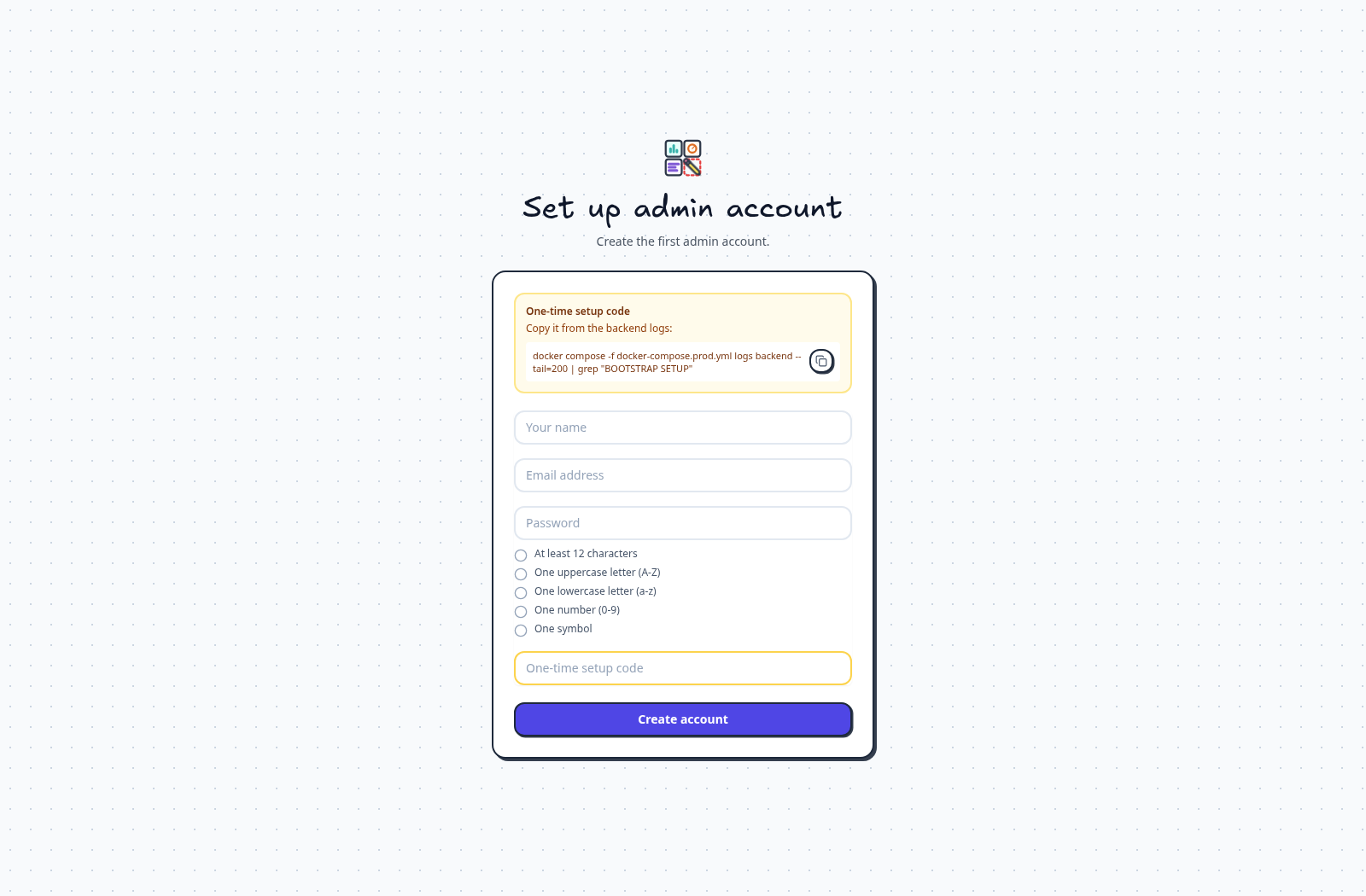
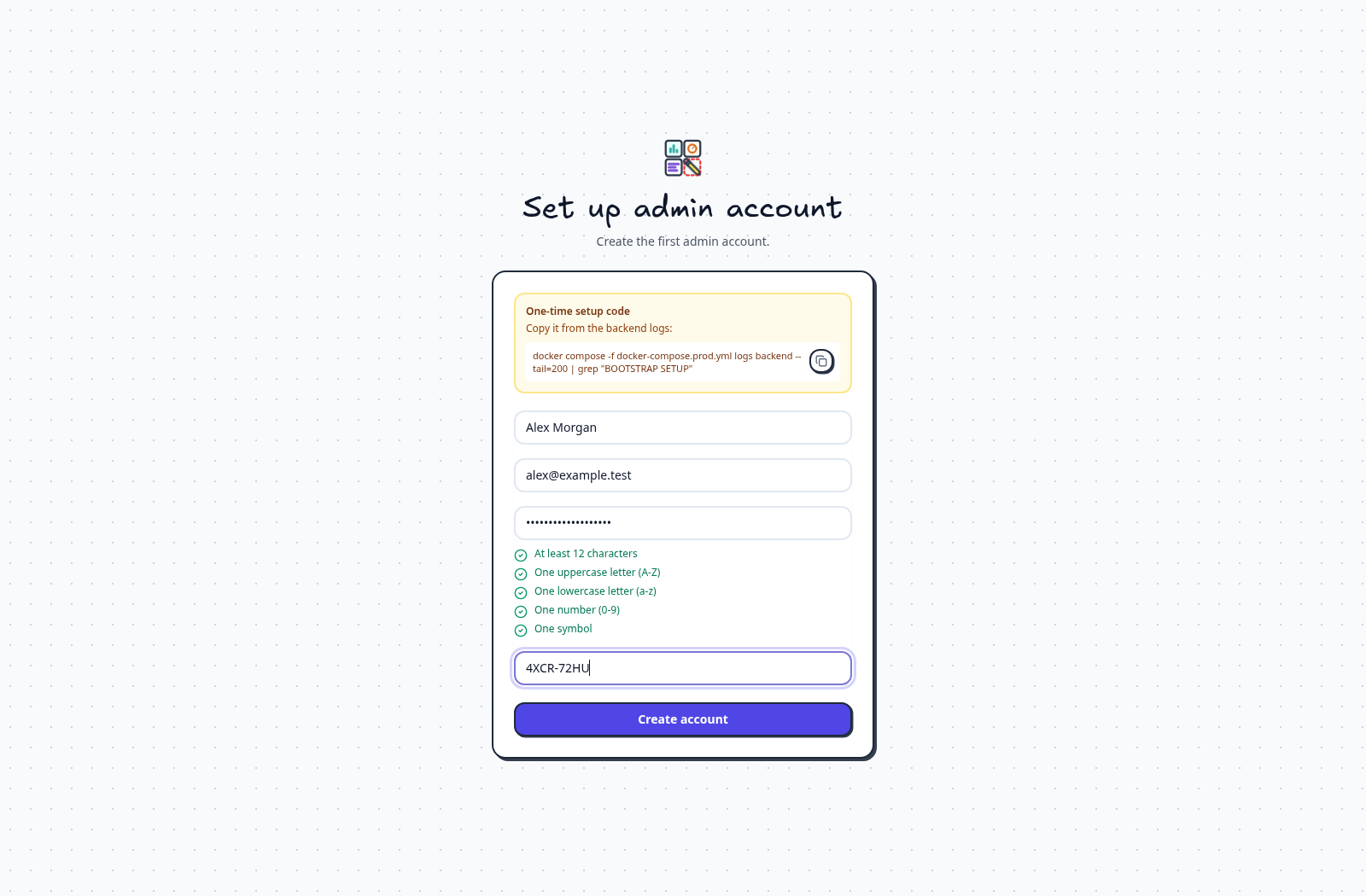
Open http://localhost:6767. On a remote server, use the server's address instead of localhost. Follow first-run setup to create the administrator account. Keep local authentication enabled, or configure OpenID Connect.
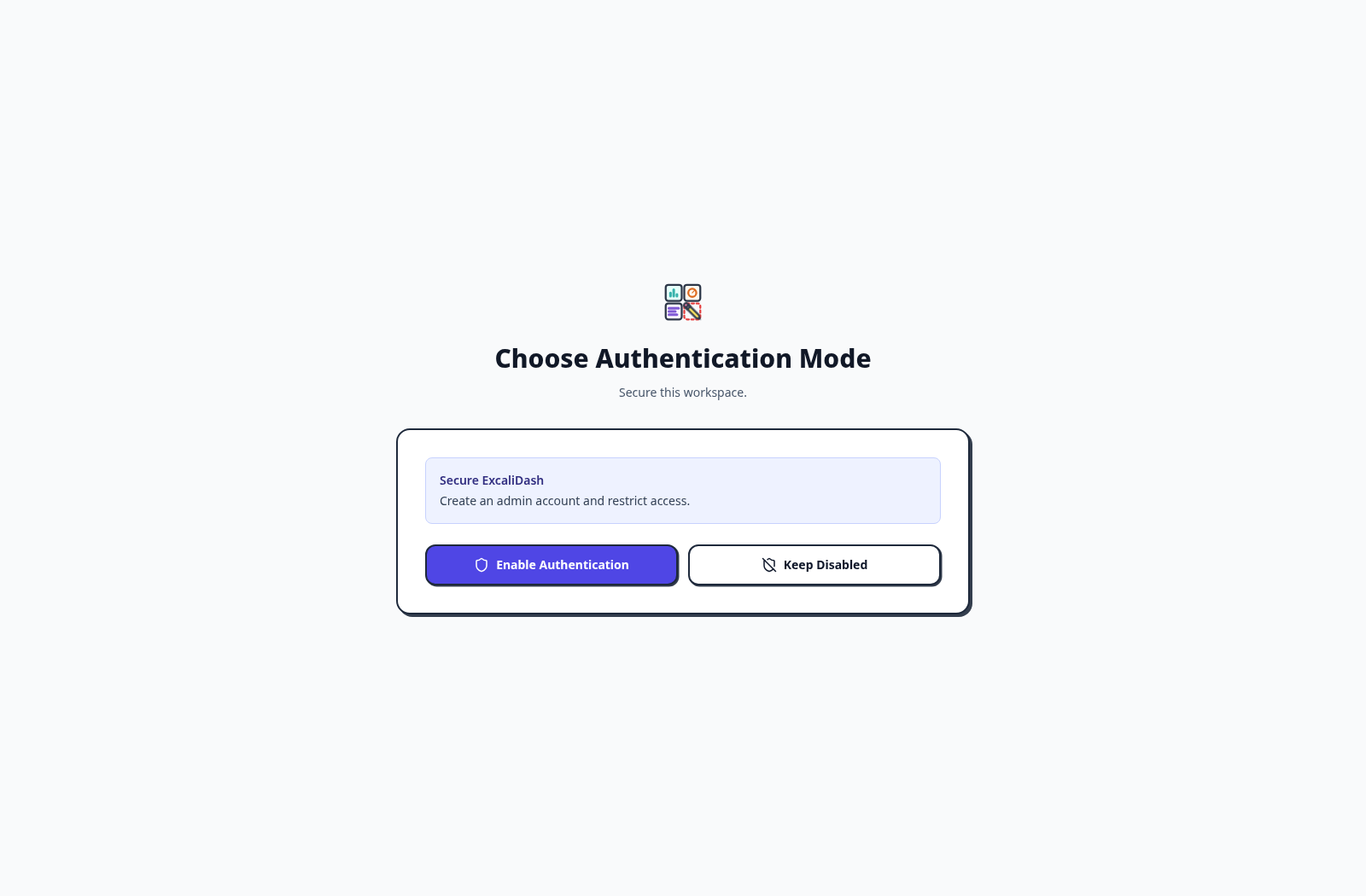
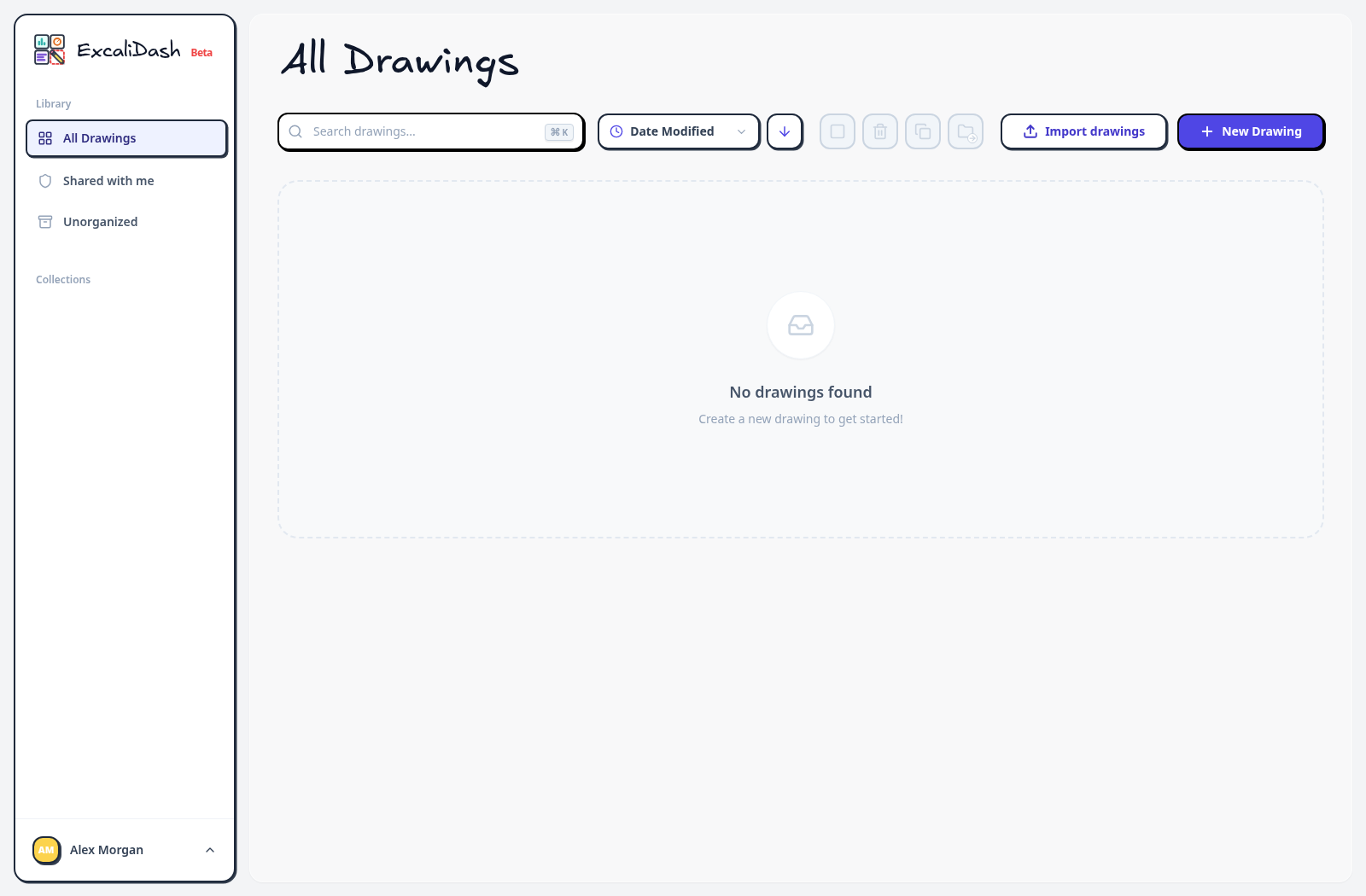
Use the arrows to follow the first-run screens after starting the stack.
When a fresh instance asks you to choose an authentication mode, select Enable Authentication to secure the workspace.
Check that the services are running:
docker compose -f docker-compose.prod.yml ps
docker compose -f docker-compose.prod.yml logs --tail=100
Create a drawing, make an edit, then close and reopen it to check storage. To check collaboration, share the drawing with a second account with editing permission and open it in a second session. See the collaboration guide.
Select an image version
Set the image tag in the root .env:
EXCALIDASH_TAG=latestPull and start both images:
docker compose -f docker-compose.prod.yml pull
docker compose -f docker-compose.prod.yml up -d
Pin a release for repeatable deployments. Use the same version for both images.
Configure HTTPS
Route HTTPS traffic to container port 80 or 8080, or host port 6767. Both container ports serve the same application. Existing 6767:80 mappings and reverse proxies targeting port 80 remain supported. The frontend proxies API and real-time traffic to the backend.
Create compose.override.yml with your public origin and the number of trusted proxy hops:
services:
  backend:
    environment:
      FRONTEND_URL: https://draw.example.com
      TRUST_PROXY: "1"
Replace https://draw.example.com with your URL. The hop count must match your proxy chain and your proxies must replace untrusted forwarding headers and forward WebSocket upgrades for /socket.io/.
Apply the override:
docker compose -f docker-compose.prod.yml -f compose.override.yml up -dNon-root port binding
The frontend runs as the non-root nginx user. Modern Docker permits it to bind port 80 inside its network namespace. On Docker installations that restrict low ports, add this frontend override to allow the listener without running nginx as root:
services:
  frontend:
    sysctls:
      net.ipv4.ip_unprivileged_port_start: "0"
This setting applies to the container network namespace, not the host.
Persist and back up data
The backend-data volume holds SQLite data, image records, and generated signing secrets. Scheduled backups copy the SQLite database. Please save your signing secrets separately.
Add these entries to compose.override.yml to enable daily database backups at 04:00 in the container's timezone:
services:
  backend:
    environment:
      BACKUP_SCHEDULE: "0 0 4 * * *"
      BACKUP_DIR: /app/backups
      BACKUP_RETENTION_DAYS: "14"
    volumes:
      - backup-data:/app/backups
volumes:
  backup-data:
Initialize the backup volume for the backend's user (UID 1001), then apply the override:
docker compose -f docker-compose.prod.yml -f compose.override.yml run --rm --no-deps --user 0 --entrypoint sh backend -c 'chown 1001:1001 /app/backups'
docker compose -f docker-compose.prod.yml -f compose.override.yml up -d
Check the backend logs for backup errors and test restoring a backup. For PostgreSQL, use your database's backup tools. If you use S3, back up its objects too.
Upgrade
docker compose -f docker-compose.prod.yml pull
docker compose -f docker-compose.prod.yml up -d
Troubleshoot your deployment
The site does not open
Check docker compose -f docker-compose.prod.yml ps and the service logs. Ensure port 6767 is available and reachable from the machine you are using. localhost always means the machine where you open the URL.
Collaboration does not connect
Confirm that your proxy forwards WebSocket upgrades for /socket.io/ to the frontend and that FRONTEND_URL matches the origin you use to open the app. Set TRUST_PROXY to match your trusted proxy chain. Check that the invited account has editing permission.
Data or backup permission errors
Use a Docker named volume for the default data directory. If you use a host bind mount, ensure the backend user (UID 1001) can write to it. For the backup volume, use the initialization command above.
Stop without deleting your data
docker compose -f docker-compose.prod.yml downThe named data volume remains. Adding --volumes deletes it, including your stored drawings. Read the storage and backup guide before removing volumes or migrating servers.